Monitoring Task
The EyesOnIt Monitoring task runs continuously active searches that alert you as detections happen, in real time. Unlike the Investigation task — which searches recorded footage after the fact — Monitoring watches live video and surfaces matches as they occur. Open the Monitoring task from the Security Desk task list.
You can run multiple searches simultaneously, each with different cameras and search criteria. All of them run in parallel, and you can pause or stop any individual search without affecting the others.
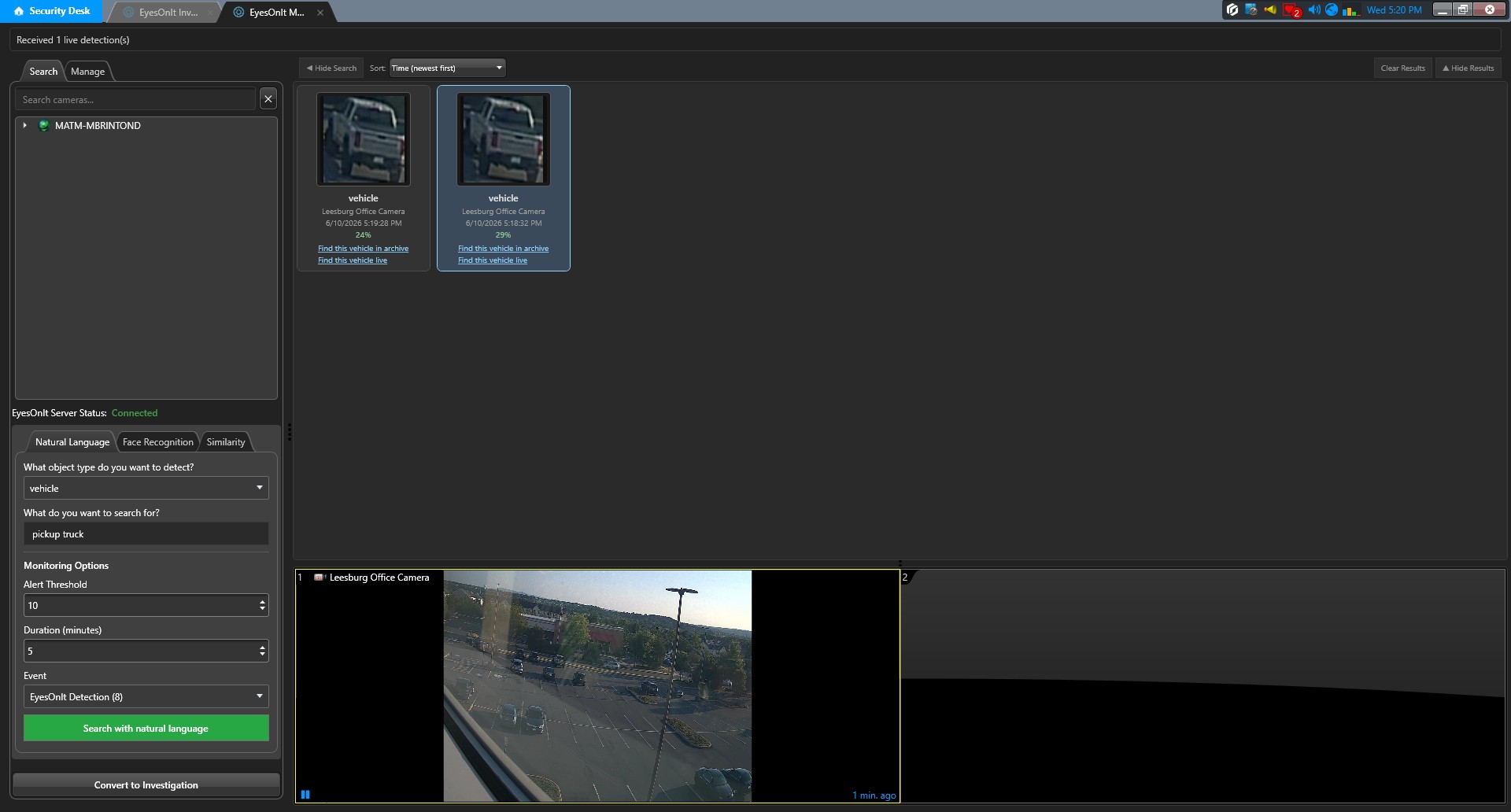
Page layout
Like the EyesOnIt Investigation task, this page has multiple areas that work together:
- Search area (left side): the place where you configure and manage searches.
- Results grid (upper main area): shows the detections that match your search, with thumbnails, timestamps, and confidence scores.
- Tile player (lower main area): a two-tile video player where you can load and review the footage surrounding each detection.
You can use the toggle buttons at the top of the main area to collapse the search panel or the results grid if you want more space for the video tiles.
Search Area Search tab
The Search tab is where you set up and run a new live search. Its layout mirrors the Investigation task, with three areas:
- Camera panel (upper-left side): a searchable tree of cameras where you choose which cameras to include in the search.
- Status indicator (below Camera panel): A text indicator showing whether Genetec is connected to EyesOnIt
- Search options (below search indicator): Where you set search options like the search mode and time options
A search tile appears in the Search Area Manage tab when you begin a search
Search Area Manage tab
The Manage tab gives you a view of search that are currently running.
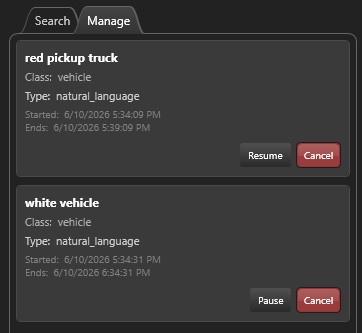
Each live search appears as a card that shows:
- A description of the search (type and parameters).
- The object class, if applicable.
- Start and end times.
- Whether the search is currently active or paused.
Each card has three action buttons:
- Pause — suspends the search. Detections stop arriving until it is resumed.
- Resume — restarts a paused search.
- Cancel — stops the search permanently and removes it from the list.
Search modes
Setting up a live search works the same way as setting up an Investigation search. The search panel in the Search tab has the same three tabs.
Natural Language
| Field | Description |
|---|---|
| Object Type | The category to watch for: person, vehicle, animal, or bag. |
| Object Description | A plain-text description of what you are looking for. |
Face Recognition
| Field | Description |
|---|---|
| Match Type | Person to watch for a specific enrolled individual, or Group to watch for any person in a group. |
| Name | The person or group name. Select a suggestion from the autocomplete list. |
Image Similarity
Click Browse to select a reference image from disk, or Capture to grab a frame from a camera stream. EyesOnIt will alert you when a live detection is visually similar to that image.
Starting a live search
Select the cameras you want to monitor, fill in your search parameters, and click Search. The search immediately appears in the Manage tab. Detections will start arriving in the results grid as they occur.
Working with results
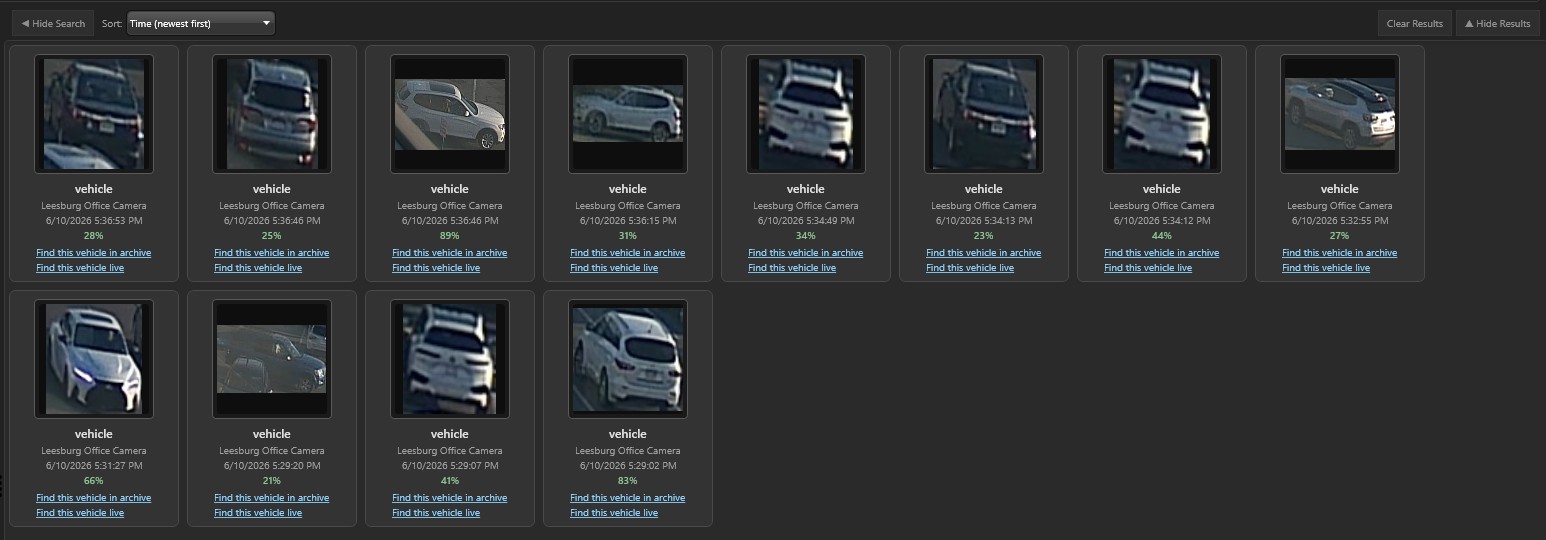
The results grid shows detections in the order they arrive. Each row includes:
| Column | Description |
|---|---|
| Camera | The camera where the detection occurred. |
| Time | The timestamp of the detection. |
| Thumbnail | A preview image of the detection. |
| Confidence | The confidence score, when available. |
| Search Actions | Links for follow-on searches. |
Double-click a row to load the video at that detection's timestamp in the tile player below.
Sorting results
Use the Sort dropdown to change the sort order of search results.
Clearing results
Click the Clear Results button in the top-right to clear existing search results.
Following up on a result
- Find this <object type> in archive — starts a new Investigation search using this detection as a similarity reference, finding other archive appearances of the same object.
- Find this <object type> live — opens the Monitoring task and starts a live search seeded with this detection, so you can watch for the same person or vehicle going forward.
Converting to Investigation
If you want to search recorded footage rather than watch live, the Convert to Investigation button at the bottom of the camera panel opens the Investigation task with your current camera selection and search parameters carried over.